


AutoCAD Programming using VB.NET with Windows Forms
Overview Many engineers and designers struggle with repetitive drafting tasks in AutoCAD, which slows down productivity and increases the chance …
 237 Students

Course Curriculum
| Unit 01: Introduction | |||
| Module 01: Course Outline | 00:03:00 | ||
| Module 02: Introduction | 00:05:00 | ||
| Module 03: Who is this course for? | 00:04:00 | ||
| Module 04: Tools Needed for this Course | 00:01:00 | ||
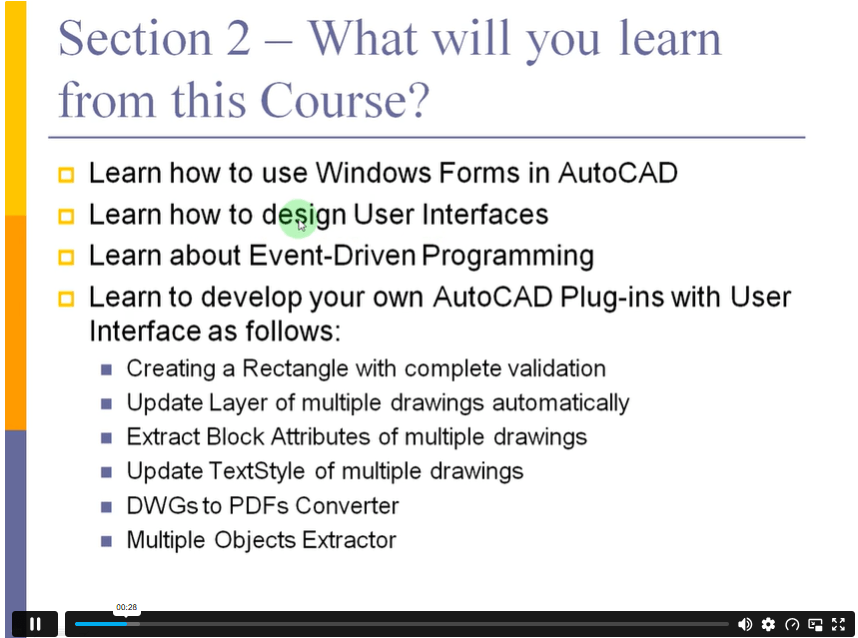
| Unit 02: What will you learn from this Course? | |||
| Module 01: What will you learn from this Course – Overview | 00:06:00 | ||
| Unit 03: Windows Form and Controls | |||
| Module 01: Windows Form and Controls – Overview | 00:04:00 | ||
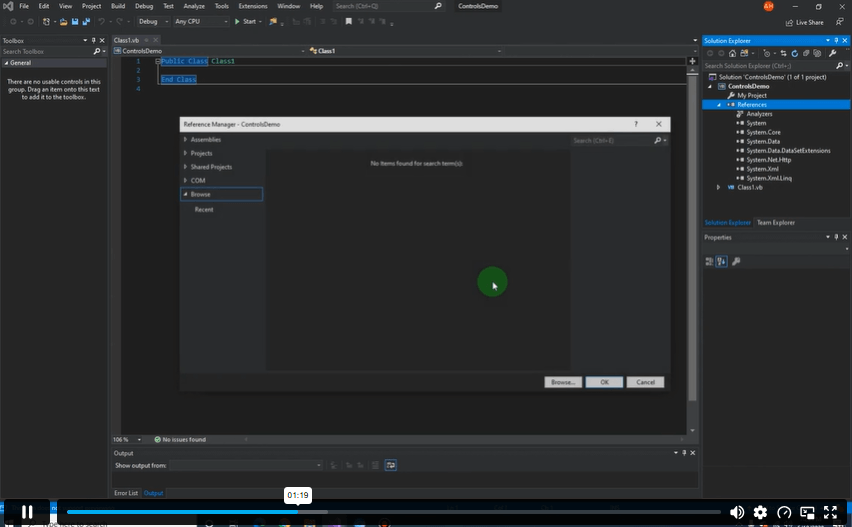
| Module 02: ControlsDemo Project – Overview | 00:03:00 | ||
| Module 03: ControlsDemo Project – Creating the Project | 00:04:00 | ||
| Module 04: Controls Demo Project – Designing the Form | 00:19:00 | ||
| Module 05: ControlsDemo Project – Creating the Utility Class | 00:10:00 | ||
| Module 06: ControlsDemo Project – Coding the Combobox Control | 00:15:00 | ||
| Module 07: ControlsDemo Project – Coding the Textbox Control | 00:10:00 | ||
| Module 08: ControlsDemo Project – Coding the Radiobutton Control | 00:08:00 | ||
| Module 09: ControlsDemo Project – Coding the Checkbox Control | 00:17:00 | ||
| Unit 04: Developing Projects | |||
| Module 01: Draw Rectangle Project – Overview | 00:03:00 | ||
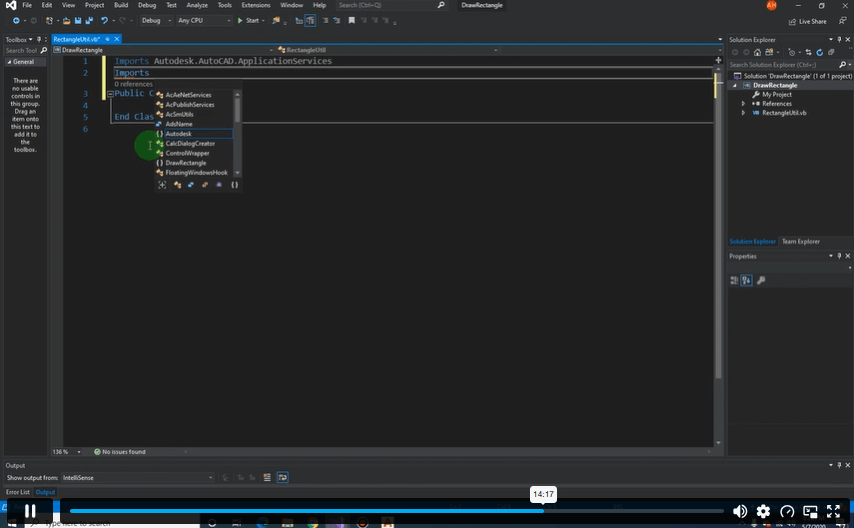
| Module 02: Creating the DrawRectangle Project | 00:04:00 | ||
| Module 03: DrawRectangle Project – Creating the Utility Class | 00:20:00 | ||
| Module 04: DrawRectangle Project – Designing the Form | 00:15:00 | ||
| Module 05: DrawRectangle Project – Coding the User Interface Part 1 | 00:24:00 | ||
| Module 06: DrawRectangle Project – Coding the User Interface Part 2 | 00:18:00 | ||
| Module 07: DrawRectangle Project – Running the Program | 00:06:00 | ||
| Module 08: Automate Update Layer Project – Overview | 00:02:00 | ||
| Module 09: Creating the AutomateUpdateLayer Project | 00:03:00 | ||
| Module 10: Automate Update Layer Project – Creating the Utility Class | 00:17:00 | ||
| Module 11: AutomateUpdateLayer Project – Designing the User Interface | 00:07:00 | ||
| Module 12: AutomateUpdateLayer Project – Coding the Form | 00:18:00 | ||
| Module 13: AutomateUpdateLayer Project – Running the Program | 00:07:00 | ||
| Module 14: Automatic Block Extractor Project – Overview | 00:03:00 | ||
| Module 15: AutomaticBlockExtractor Project – Creating the Project | 00:03:00 | ||
| Module 16: AutomaticBlockExtractor Project – Creating the User Interface | 00:09:00 | ||
| Module 17: AutomaticBlockExtractor Project – Coding the Form | 00:27:00 | ||
| Module 18: AutomaticBlockExtractor Project – Creating the Utility Class | 00:27:00 | ||
| Module 19: AutomaticBlockExtractor Project – Running the Program | 00:10:00 | ||
| Module 20: AutomateUpdateTextStyles Project – Overview | 00:03:00 | ||
| Module 21: AutomateUpdateTextStyle Project – Creating the Project | 00:02:00 | ||
| Module 22: AutomateUpdateTextStyle Project – Creating the User Interface | 00:09:00 | ||
| Module 23: AutomateUpdateTextStyle Project – Coding the Form | 00:20:00 | ||
| Module 24: AutomateUpdateTextStyle Project – Coding the Utility Class | 00:16:00 | ||
| Module 25: AutomateUpdateTextStyle Project – Running the Program | 00:08:00 | ||
| Module 26: Multiple Plot DWG to PDF Project – Overview | 00:03:00 | ||
| Module 27: MultiplePlotDWGtoPDF Project – Creating the Project | 00:04:00 | ||
| Module 28: MultiplePlotDWGtoPDF Project – Creating the User Interface | 00:09:00 | ||
| Module 29: MultiplePlotDWGtoPDF Project – Coding the Form | 00:20:00 | ||
| Module 30: MultiplePlotDWGtoPDF Project – Creating the Utility Class | 00:30:00 | ||
| Module 31: MultiplePlotDWGtoPDF Project – Running the Program | 00:13:00 | ||
| Module 32: Multiple Object Extractor Project – Overview | 00:03:00 | ||
| Module 33: MultipleObjectExtractor Project – Creating the Project | 00:02:00 | ||
| Module 34: MultipleObjectExtractor Project – Creating the User Interface | 00:15:00 | ||
| Module 35: MultipleObjectExtractor Project – Coding the Form Load Event | 00:05:00 | ||
| Module 36: MultipleObjectExtractor Project – Coding the Browse Buttons | 00:10:00 | ||
| Module 37: MultipleObjectExtractor Project – Coding the Extract Button | 00:20:00 | ||
| Module 38: MultipleObjectExtractor Project – Coding the ProcessDrawing Method | 00:09:00 | ||
| Module 39: MultipleObjectExtractor Project – Coding the ProcessObjectExtraction Method | 00:11:00 | ||
| Module 40: MultipleObjectExtractor Project – Coding the ExtractLine Method | 00:09:00 | ||
| Module 41: MultipleObjectExtractor Project – Coding the ExtractCircle Method | 00:03:00 | ||
| Module 42: MultipleObjectExtractor Project – Coding the ExtractPolyline Method | 00:09:00 | ||
| Module 43: MultipleObjectExtractor Project – Coding the ExtractMText Method | 00:05:00 | ||
| Module 44: MultipleObjectExtractor Project – Coding the ExtractBlock Method | 00:05:00 | ||
| Module 45: MultipleObjectExtractor Project – Running the Program | 00:15:00 | ||
| Unit 05: Conclusion | |||
| Module 01: Conclusion | 00:01:00 | ||
| Assignment | |||
| Assignment – AutoCAD Programming using VB.NET with Windows Forms | 00:00:00 | ||

Course Reviews
No Reviews found for this course.
It is the process of creating custom tools and automation features inside AutoCAD using VB.NET. It helps reduce manual drafting work and improves design efficiency. This course explains how to connect programming with AutoCAD workflows.
Basic computer skills are enough to start. The course introduces VB.NET concepts step by step. Even beginners can follow and learn how to build simple AutoCAD applications.
These skills are used in engineering, architecture, manufacturing, and CAD automation roles. Many companies use custom tools to speed up design processes. It is valuable for both technical and software-related careers.
You will need AutoCAD, VB.NET, and Windows Forms environment. The course explains how to set up and connect these tools. Everything is shown in a simple and structured way.
Yes, learning AutoCAD programming with VB.NET can open doors to automation and CAD development roles. It helps you stand out in technical and design-based job markets.
Exclusive Deal! 95% Off, Today Only!
Offer Ends Soon
 Take All courses for £49

 Access
 Level
Level
 Number of Units
 Duration
 Course Type
- £24.99
- 1 year
- Intermediate
- Number of Units61
- Number of Quizzes0
- 9 hours, 51 minutes Gift this course
 14-Day Money-Back Guarantee
Exclusive Deal! 95% Off, Today Only!
Discounted Total:- 50% discount for orders of 10+ courses
- 60% discount for orders of 50+ courses
- 70% discount for orders of 100+ courses