


Adobe Illustrator Masterclass
Overview Struggling to create clean, professional designs using Illustrator tools? Many learners feel overwhelmed by too many features and don’t …
4.7
4.7 Rating ( 8 Reviews )  95 Students
 95 Students
Bestseller
Great Service
Highly Rated
Trending


Course Curriculum
| Module 01: Introduction | |||
| Introduction to the Course | 00:02:00 | ||
| Module 02: How To Use The Selection Tools | |||
| How To Use the Selection Tool | 00:05:00 | ||
| How To Use The Direct Selection Tool | 00:04:00 | ||
| How To Use the Group Selection Tool | 00:04:00 | ||
| How To Use The Magic Wand Tool | 00:05:00 | ||
| How To Use the Lasso Tool | 00:03:00 | ||
| Module 03: How To Use the Pen Tool and the Gang in Illustrator? | |||
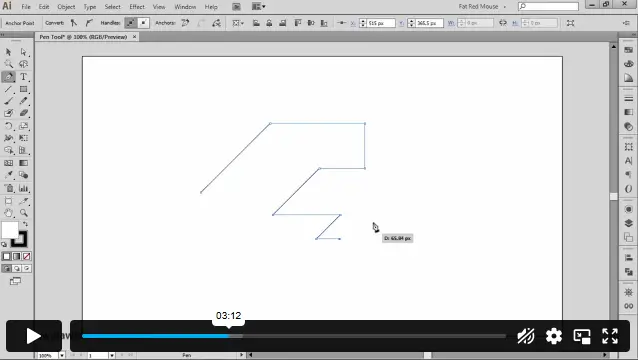
| How To Use The Pen Tool | 00:09:00 | ||
| How To Use the Add/Remove Anchor Point Tool | 00:05:00 | ||
| How To Use the Convert Anchor Point Tool | 00:04:00 | ||
| How To use the Curvature Tool | 00:06:00 | ||
| How to Use the Convert Anchor Points Tool | 00:04:00 | ||
| The Arc Tool | 00:04:00 | ||
| Module 04: How To Use the Typography Tools in Illustrator | |||
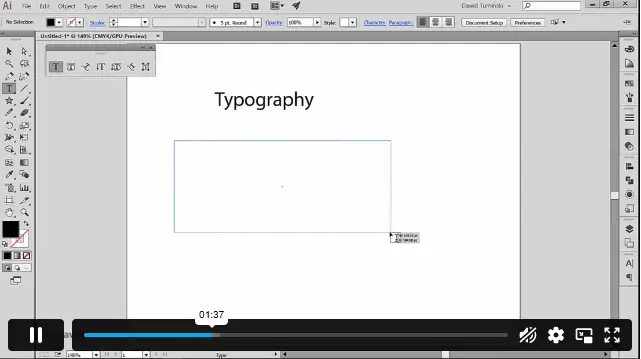
| How To Use the Type Tool in Illustrator | 00:05:00 | ||
| How To Use the Area Type Tool | 00:04:00 | ||
| How To Use the Type on a Path Tool | 00:05:00 | ||
| How To Use the Vertical Area Type Tool | 00:04:00 | ||
| How To use the Vertical Type on a Path Tool | 00:02:00 | ||
| Type on a Path Trick | 00:03:00 | ||
| How To Use the Touch Type Tool | 00:03:00 | ||
| Module 05: How To Use The Drawing Tools in Illustrator Pt 1 | |||
| The Line Segment Tool | 00:06:00 | ||
| The Arc Tool | 00:06:00 | ||
| The Spiral Tool | 00:03:00 | ||
| The Rectangular Grid Tool | 00:08:00 | ||
| The Polar Grid Tool | 00:06:00 | ||
| Module 06: How To Use The Drawing Tools in Illustrator Pt 2 | |||
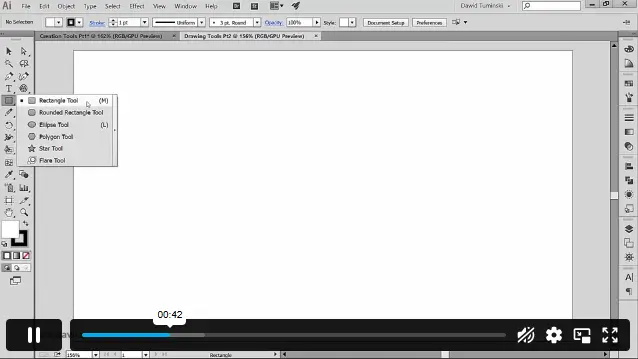
| The Rectangle Tool | 00:03:00 | ||
| The Rounded Rectangle Tool | 00:04:00 | ||
| The Ellipse Tool | 00:02:00 | ||
| The Polygon Tool | 00:03:00 | ||
| The Star Tool | 00:05:00 | ||
| The Flare Tool | 00:03:00 | ||
| Module 07: How to Use the Paintbrush Tools | |||
| How To Apply a Brush Stroke | 00:03:00 | ||
| How To Paint with the Paintbrush | 00:03:00 | ||
| Types of Brushes | 00:02:00 | ||
| Global Paintbrush Tool Options | 00:03:00 | ||
| How To Create A Calligraphic Brush | 00:03:00 | ||
| How To Create A Scatter Brush | 00:03:00 | ||
| How To Create an Art Brush | 00:03:00 | ||
| How To Create A Pattern Brush | 00:03:00 | ||
| How To Create A Bristle Brush | 00:03:00 | ||
| How To Use The Blob Brush | 00:02:00 | ||
| Module 08: How to Use the Pencil Tools | |||
| How To Use the Pencil Tool – the basics | 00:02:00 | ||
| Creating More Paths with the Pencil Tool | 00:02:00 | ||
| The Pencil Tool Settings | 00:03:00 | ||
| The Pencil Tools Sidekicks- The Smooth Path Eraser and Join Tools | 00:03:00 | ||
| Module 09: The Eraser Tools | |||
| How To Use The Eraser Tool | 00:06:00 | ||
| The Eraser Tool Options | 00:02:00 | ||
| How To Use The Scissors and the Knife Tools | 00:03:00 | ||
| Module 10: The Rotate and Reflect Tools | |||
| How To Use the Rotate Tool | 00:04:00 | ||
| How To Rotate the Objects | 00:03:00 | ||
| How To Use the Reflect Tool | 00:03:00 | ||
| How to Find the Centre Spot of your Artwork | 00:04:00 | ||
| How To Use the Scale Tool | 00:05:00 | ||
| How To Use the Shear Tool | 00:05:00 | ||
| How To Use the Reshape Tool | 00:02:00 | ||
| How to Use the Transform Tool | 00:03:00 | ||
| How To Use the Transformation Tool | 00:01:00 | ||
| Module 11: The Liquify Tools | |||
| How To Use The Width Tool | 00:02:00 | ||
| How To Save Width Profiles | 00:03:00 | ||
| How To Use the Liquify Tools | 00:03:00 | ||
| How To Use the Liquify Tools Continued | 00:04:00 | ||
| Module 12: The Shape Builder and Live Paint Tools | |||
| How The Shape Builder Tool Works | 00:02:00 | ||
| How To Merge And Erase Paths | 00:03:00 | ||
| Shape Builder Tool Options | 00:04:00 | ||
| How To Use the Paint Bucket Tool | 00:03:00 | ||
| How To Modify Live Paint Groups | 00:04:00 | ||
| The Live Paint Tool Options | 00:02:00 | ||
| Module 13: The Perspective Grid Tool | |||
| How To Use The Perspective Grid | 00:04:00 | ||
| How To Draw Objects In Perspective | 00:04:00 | ||
| How To Add Objects To A Perspective Grid | 00:03:00 | ||
| How To Create Perspective Text | 00:02:00 | ||
| How To Create Your Custom Grid | 00:03:00 | ||
| Module 14: How to Use the Gradient Tool | |||
| How To Use the Gradient Tools | 00:03:00 | ||
| Gradients, swatches and multiple objects | 00:02:00 | ||
| Apply a gradient across multiple objects | 00:02:00 | ||
| How to use the Gradient panel | 00:03:00 | ||
| How To Work with Gradient Meshes | 00:04:00 | ||
| Achieving photorealistic effects with gradient meshes | 00:09:00 | ||
| Module 15: How To Use the Blend tool | |||
| How To Use the Blend Tool | 00:04:00 | ||
| How to edit the blends | 00:03:00 | ||
| How To Create the Long Shadow Effect Using the Blend Tool | 00:05:00 | ||
| Module 16: How To Use the Technical Tools | |||
| The Eyedropper Tool | 00:04:00 | ||
| How To Use the Zoom, Hand and Measure Tool | 00:03:00 | ||
| How To Use the Artboard Tool | 00:03:00 | ||
| Artboard Tool Options | 00:02:00 | ||
| Print Tiling Tool | 00:03:00 | ||
| Module 17: How To Use the Symbols and the Symbolism Tools | |||
| How To Use Symbols In Illustrator | 00:04:00 | ||
| How To use The Symbolism Tools | 00:03:00 | ||
| How To Use The Symbolism Tool – Continued | 00:03:00 | ||
| Module 18: How To Use the Graph Tools | |||
| How to use Graphs in Illustrator | 00:07:00 | ||
| Types of graphs in Illustrator | 00:05:00 | ||
| How to stylize graphs in Illustrator | 00:04:00 | ||
| How To Stylize Your Graph | 00:07:00 | ||
| Module 19: How To Use Slicing and the Slice Tools | |||
| How To Create Slices and Use The Slice Tool in Illustrator | 00:07:00 | ||
| How To Use Slices for Web Development | 00:04:00 | ||
| Slice options | 00:04:00 | ||
| Module 20: How To Use the Color Tools and Drawing Modes | |||
| How To Use the Color Tools and Drawing Modes in Illustrator | 00:03:00 | ||
| How To Use the Drawing and Screen Modes | 00:05:00 | ||
| Module 21: Summary | |||
| Summary | 00:01:00 | ||
| Assignment | |||
| Assignment -Adobe Illustrator Masterclass | 00:00:00 | ||

1. Is this course suitable for beginners? +
Yes, it starts from basics and moves to advanced tools step by step.
2. What software do I need? +
You need Adobe Illustrator installed on your computer.
3. Will I learn advanced Illustrator tools? +
Yes, the course covers both basic and advanced tools in detail.
4. Can I use these skills for professional work? +
4. Can I use these skills for professional work?
5. How long does it take to complete? +
Completion time depends on your pace, usually a few days to weeks.
£24.99
Exclusive Deal! 92% Off, Today Only!
Offer Ends Soon
 Take All courses for £49

This course includes:
 Access
 Level
Level
 Number of Units
 Duration
 Course Type
- £24.99
- 1 year
- Intermediate
- Number of Units99
- Number of Quizzes0
- 6 hours, 2 minutes Gift this course
 14-Day Money-Back Guarantee
£24.99
/Unit Price
Exclusive Deal! 95% Off, Today Only!
Discounted Total:£120.00
Quantity:
Buying more than one of the same courses?
- 50% discount for orders of 10+ courses
- 60% discount for orders of 50+ courses
- 70% discount for orders of 100+ courses
Looking for a more personalised package?
Contact Us Now