


Build Animations with Adobe After Effects
Overview Creative video now sits at the heart of UK marketing, social media, training and digital storytelling, with the UK …
 128 Students

Course Curriculum
| Build Animations with Adobe After Effects | |||
| Module: 01 | |||
| 1.1 Intro Video | 00:03:00 | ||
| 1.2 Resource Files – Adobe After Effects CC | 00:00:00 | ||
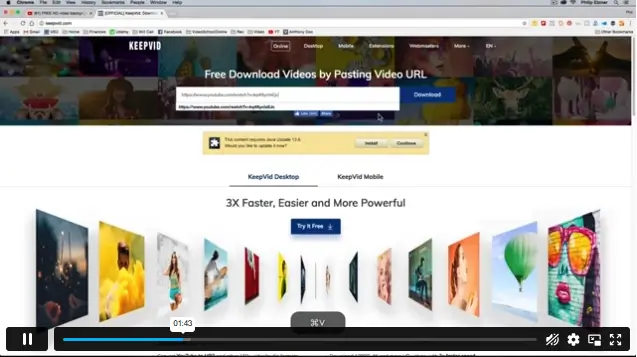
| 1.3 Animate Your Name | 00:07:00 | ||
| Module: 02 | |||
| 2.1 Understand the After Effects Workspace | 00:06:00 | ||
| 2.2 Starting a New Composition | 00:08:00 | ||
| 2.3 Adding Media to Your Project and Timeline | 00:05:00 | ||
| 2.4 Using the Basic After Effects Tools | 00:10:00 | ||
| 2.5 Create a Perfect Circle, Alignment, and Shape Colors | 00:03:00 | ||
| 2.6 Working in the Timeline | 00:11:00 | ||
| 2.7 Layer Properties | 00:09:00 | ||
| Module: 03 | |||
| 3.1 Animating in After Effects | 00:08:00 | ||
| 3.2 Position, Scale, and Rotation Animations | 00:05:00 | ||
| 3.3 Tips to Make Your Animations Look More Nautral | 00:04:00 | ||
| 3.4 Using the Graph Editor | 00:06:00 | ||
| 3.5 Challenge – Bouncing Ball | 00:01:00 | ||
| 3.6 Solution – Bouncing Ball | 00:20:00 | ||
| Module: 04 | |||
| 4.1 Working With Solid Layers and the ken Burns Effects | 00:07:00 | ||
| 4.2 Working With Shape Layers, Strokes, and Paths | 00:06:00 | ||
| 4.3 Adding Layer Styles Like Drop Shadow, Bevel, and Gradients | 00:04:00 | ||
| 4.4 Shape Effects – Trim Path Animation, Wiggle, and Zig Zag | 00:06:00 | ||
| Module: 05 | |||
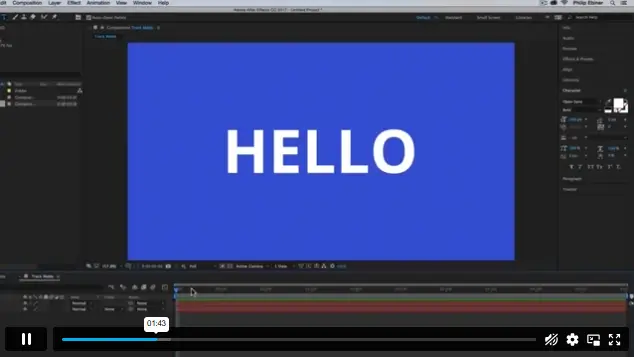
| 5.1 Track Matte Animation – Make Layers Appear And Disappear | 00:09:00 | ||
| 5.2 Using Pre-Compositions to Group Layers | 00:06:00 | ||
| 5.3 Easily Reverse Complicated Animations | 00:02:00 | ||
| 5.4 Playing with Time | 00:06:00 | ||
| 5.5 Blend Modes | 00:06:00 | ||
| 5.6 Stabilize Shaky Footage | 00:04:00 | ||
| Module: 06 | |||
| 6.1 Intro to Motion Graphics Projects | 00:54:00 | ||
| 6.2 Clean Lower Third | 00:09:00 | ||
| 6.3 Logo Reveal Animation Bumper | 00:13:00 | ||
| 6.4 Colorful Transition | 00:17:00 | ||
| 6.5 Text with Mask Path Animation | 00:10:00 | ||
| 6.6 Text Bubble Animation | 00:14:00 | ||
| 6.7 Weather App 1 | 00:17:00 | ||
| 6.8 Weather App 2 | 00:08:00 | ||
| 6.9 Weather App 3 | 00:07:00 | ||
| Module: 07 | |||
| 7.1 Flat Animation Challenge | 00:03:00 | ||
| 7.2 Phil Designs his Flat Animation Scene | 00:13:00 | ||
| 7.3 Animating Fireworks with the Repeater Effect | 00:15:00 | ||
| Module: 08 | |||
| 8.1 Removing Green Screen Background | 00:07:00 | ||
| 8.2 Adding a Background that Matches the Foreground | 00:08:00 | ||
| 8.3 Adding Motion to a Still Image with the Puppet Tool | 00:06:00 | ||
| 8.4 Adding Movement with the Ripple Effect | 00:06:00 | ||
| Module: 09 | |||
| 9.1 Intro to 3D | 00:10:00 | ||
| 9.2 Swinging 3D Text Animation | 00:12:00 | ||
| 9.3 Build Out Your 3D Composition | 00:06:00 | ||
| 9.4 Animating Our 3D Scene | 00:08:00 | ||
| 9.5 Create Stars in After Effects | 00:05:00 | ||
| Module: 10 | |||
| 10.1 Using the Rotoscope Tool | 00:07:00 | ||
| 10.2 Cleaning Up Your Edges | 00:07:00 | ||
| 10.3 Finishing Our Rotobrush Animation | 00:08:00 | ||
| Module: 11 | |||
| 11.1 Easy Screen Replacement with Masks | 00:10:00 | ||
| 11.2 Replacing a Screen Version 2 | 00:14:00 | ||
| 11.3 Screen Replacement with Mocha | 00:08:00 | ||
| Module: 12 | |||
| 12.1 Using the Puppet Pin Tool | 00:05:00 | ||
| 12.2 Animating Your Puppet Pins | 00:03:00 | ||
| 12.3 Animated Blinking Eyes | 00:08:00 | ||
| 12.4 Adding Perspective with Animated Clouds | 00:07:00 | ||
| Module: 13 | |||
| 13.1 Applying Text Animation Presets | 00:06:00 | ||
| 13.2 Create a page Turn Effect with CC page Turn | 00:10:00 | ||
| 13.3 Radial and Linear wipes | 00:03:00 | ||
| 13.4 Color Correction in After Effects | 00:04:00 | ||
| Module: 14 | |||
| 14.1 Motion Tracking Basics | 00:10:00 | ||
| 14.2 Tracking Text and Visual Effects to Video Clip | 00:06:00 | ||
| 14.3 Tracking Rotation and Scale | 00:12:00 | ||
| 14.4 Adding Details to Our Text | 00:04:00 | ||
| Module: 15 | |||
| 15.1 Intro to Character Animation | 00:02:00 | ||
| 15.2 Design Your Character | 00:15:00 | ||
| 15.3 Rigging Your Character | 00:03:00 | ||
| 15.4 animation Our Character | 00:10:00 | ||
| 15.5 Adding the Animated Background | 00:09:00 | ||
| 15.6 Adding Details to Character Movement | 00:07:00 | ||
| 15.7 Adding the Paper Cut Out Look | 00:06:00 | ||
| Module: 16 | |||
| 16.1 Exporting an H264 File From After Effects | 00:07:00 | ||
| 16.2 Exporting from After Effects with a Transparent Background | 00:04:00 | ||
| 16.3 Exporting from After Effects through Adobe Media Encoder | 00:05:00 | ||
| 16.4 Create an Animated GIF from After Effects | 00:07:00 | ||
| Module: 17 | |||
| 17.1 Audio Tips for After Effects | 00:03:00 | ||
| 17.2 Working with Premiere Pro | 00:06:00 | ||
| Module: 18 | |||
| 18.1 Expressions Basics | 00:07:00 | ||
| 18.2 Animate a Flickering with Expressions | 00:18:00 | ||
| Module: 19 | |||
| 19.1 Conclusion | 00:01:00 | ||

Yes. Adobe After Effects can be learned by beginners when the training starts with workspace setup, compositions, media importing, timelines and basic keyframes before moving into motion graphics, visual effects, tracking and character animation.
You will learn keyframes, position, scale, rotation, the Graph Editor, shape layers, lower thirds, logo reveals, text animation, green screen removal, puppet tools, rotoscoping, screen replacement, 3D animation, motion tracking, expressions and exporting.
Yes. The course covers motion graphics skills such as lower thirds, logo reveals, colourful transitions, animated text, shape effects, text bubbles, weather app animations and title graphics for video, social media and digital content.
Yes. The course includes green screen background removal and background replacement, helping learners understand basic compositing techniques used in video editing, online content, creative production and visual effects projects.
Yes. It can support early learning for motion graphics, animation, visual effects and video editing pathways. Creative roles usually require regular practice, a strong portfolio, project examples, wider software knowledge and real editing or design experience.
Exclusive Deal! 95% Off, Today Only!
Offer Ends Soon
 Take All courses for £49

 Access
 Level
Level
 Number of Units
 Duration
 Course Type
- £24.99
- 1 year
- Intermediate
- Number of Units81
- Number of Quizzes0
- 10 hours, 52 minutes Gift this course
 14-Day Money-Back Guarantee
Exclusive Deal! 95% Off, Today Only!
Discounted Total:- 50% discount for orders of 10+ courses
- 60% discount for orders of 50+ courses
- 70% discount for orders of 100+ courses